
Set the scale for each sheet
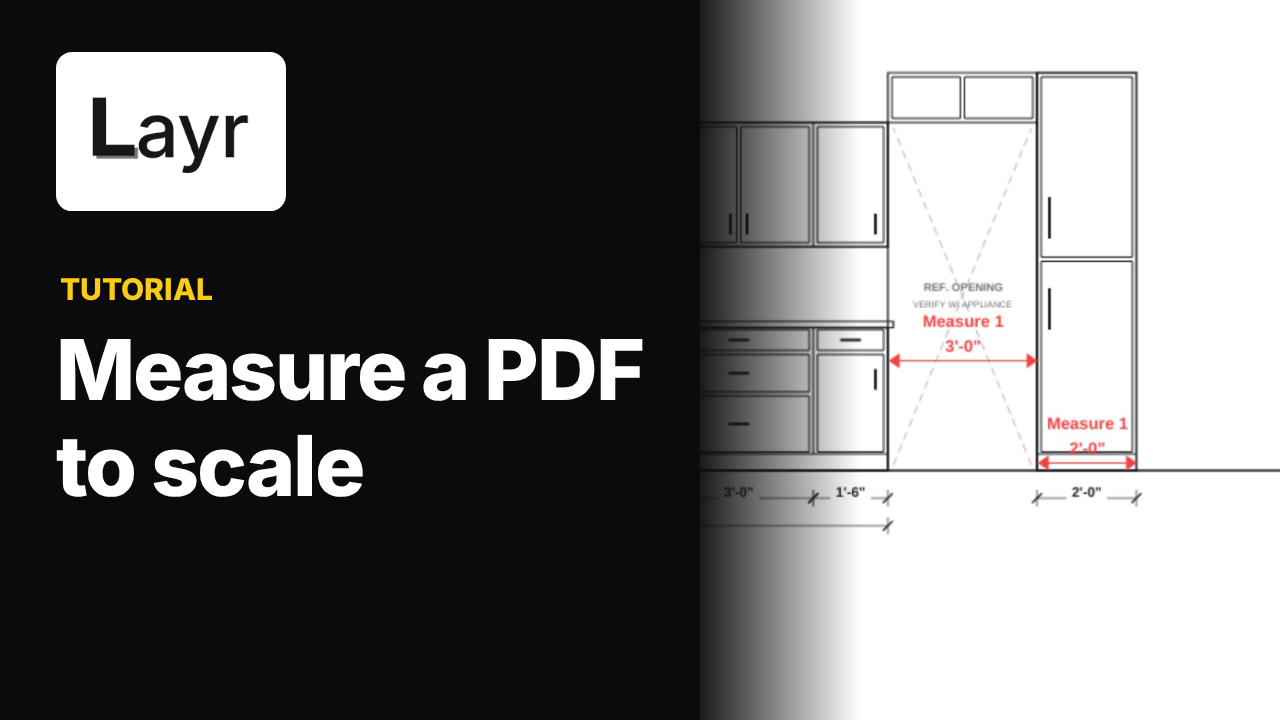
The elevation uses a 1:20 scale preset, the island sheet uses 1:10, and the plan uses 1:20. Choose the preset that matches the sheet you are measuring; the different views do not share one assumed scale.
The lesson sets area labels to 0.01 m² and saves that choice with Set Default. Later, the length tool uses a whole-millimetre display default. These defaults control the measurement tags; Totals and the CSV retain two decimal places in this recording.
Measure and group the gross areas
Select Area, or use Shift+M after the tool has been introduced, and trace the intended boundaries. The paint-grade fronts are measured as gross run areas. Keep the oak tall-unit areas and stone tops in their own named groups so their totals remain distinct.
The stone example is also gross: the sink opening is not deducted. Its total is 5.79 m². The recorded paint group totals 10.28 m² and the oak group totals 5.08 m². These are measurements of the traced regions, not a door schedule, cutting list or material-order calculation.
Count pulls, flag a detail and measure baseboard
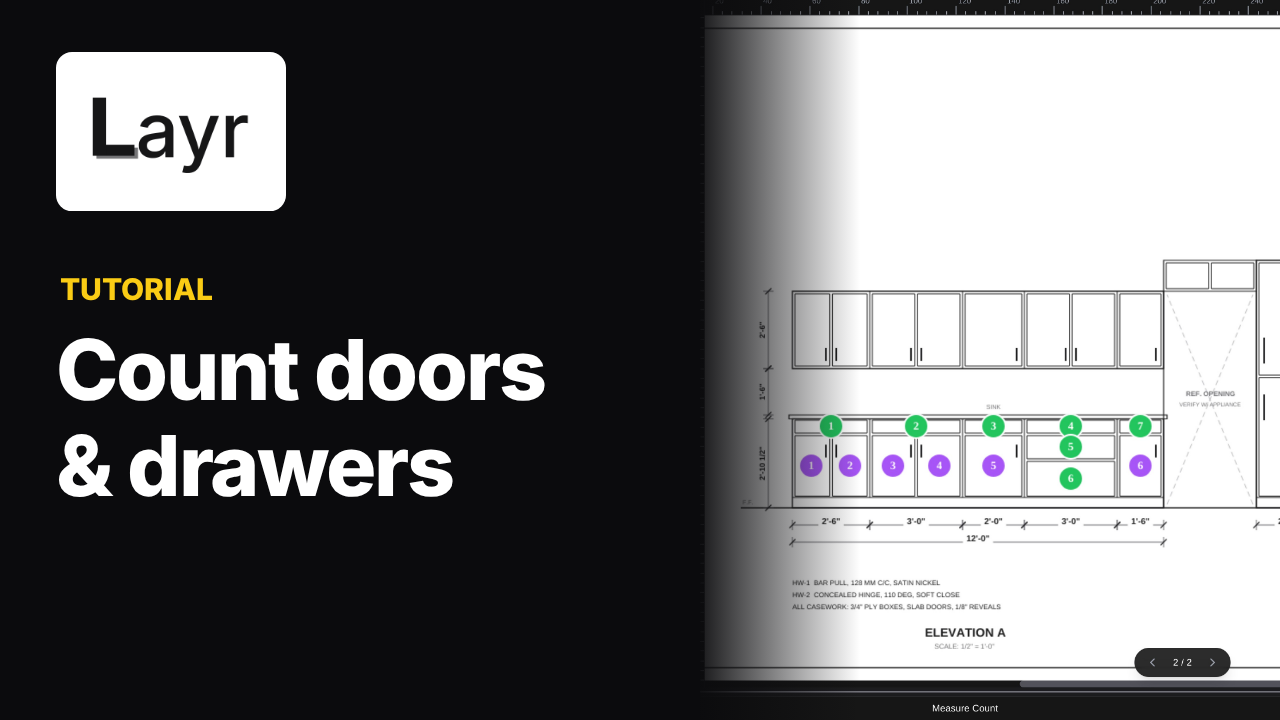
Choose Count and place a marker on each pull in the H-01 Pulls group. Press Esc to stop counting. The completed example has 25 pull markers, kept separate from the area groups.
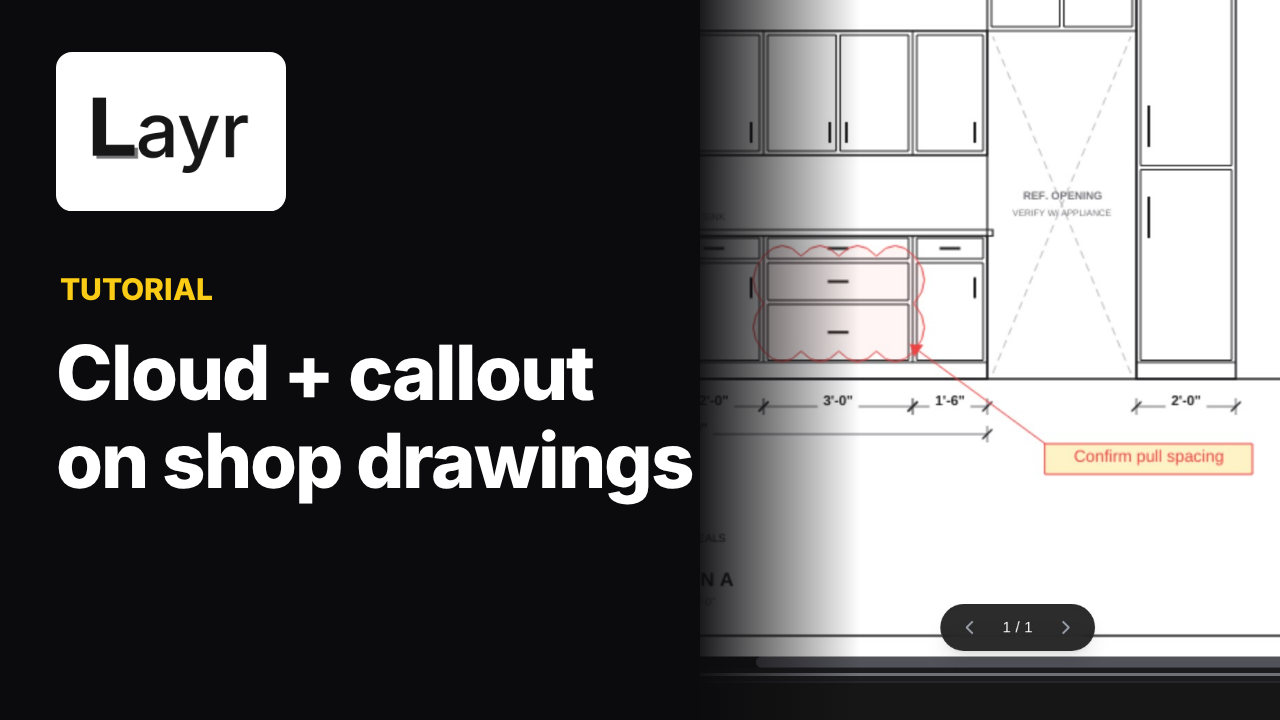
Add a Cloud+ note to flag the filler-width detail for review. On the plan, use Measure or M to trace the baseboard lengths and give that group a recognizable name. The two baseboard measurements total 7693.86 mm in Totals and the CSV, even though the drawing tags use whole millimetres.
Check the scope before reading the totals
Open Totals and choose All Pages to review the groups across the drawing set. Current Page shows the current sheet instead. Check the scope, group names, units and page references before exporting.
For an area group, Count means the number of measured regions. In this example, Paint has six regions, Oak has three and Stone has three. Those counts do not describe the number of doors or fabricated parts. H-01 Pulls is a separate count group with 25 markers.
Export CSV and open the same file
Click CSV from the reviewed Totals view, then open that exported file in a spreadsheet. The video opens it in LibreOffice Calc and shows the group names, counts, totals, units and page references in readable columns.
The walkthrough demonstrates CSV export, not a native Excel workbook. Review the measured boundaries and any required deductions before using the exported numbers for estimating or fabrication.
Common questions
Does the stone area deduct the sink opening?
No. The demonstrated 5.79 m² stone total is a gross area; the sink opening is not deducted.
Why is Area Count different from the number of doors?
Area Count counts the regions you measured. A single region can span a whole run of fronts. The video's Paint group has six measured regions, not six doors.
Why does the CSV show decimal millimetres after choosing whole millimetres?
The chosen precision controls the drawing tags. Totals and CSV show two decimal places in this recording, so the baseboard total is 7693.86 mm.
Is the spreadsheet shown in Excel?
The exported CSV is opened in LibreOffice Calc. This lesson does not demonstrate Excel or a native XLSX export.
Put it into practice
Try these steps on your next drawing.
Open a PDF in LayrPDF and follow along with the lesson.